Obsbot Tiny 3 Honest Review — Is the Hype Justified?
I've been using the Obsbot Tiny 3 on my main laptop for the past four months, and I wanted to write an honest, detailed review from the perspective of an everyday laptop user who cares about video quality, tracking, and a smooth workflow. I bought this camera to improve my video calls, record occasional tutorial videos, and trim the amount of fiddling I do with framing. After weeks of daily use, testing in different lighting conditions, and comparing it to my laptop's built-in webcam and a couple of older external webcams I've owned, here's what I found.
Why I bought the Obsbot Tiny 3
My laptop's built-in webcam had suffered from soft focus and washed-out skin tones for years. I wanted something compact, plug-and-play, and smart enough to keep me centered when I move around during presentations. The Obsbot Tiny 3 promised AI tracking, decent image quality, and a small footprint that wouldn't be annoying on the laptop lid. Those features are what sold me — and they largely define the experience I had.
Unboxing and first impressions
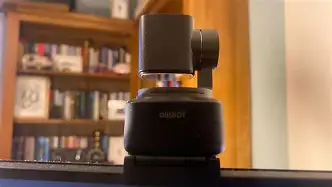
The Tiny 3 is immediately familiar if you've handled compact AI webcams before: small cylindrical body, a clipped mount that doubles as a stand, and a short USB-C cable. In my experience, the build quality felt solid for its size. The housing is mostly plastic but not cheap-feeling; the hinge that clamps to my laptop screen felt sturdy. I appreciated the minimalist design — it blends with my laptop rather than screaming "accessory."
Two small practical notes from day one: there's no heavy instruction manual required to set it up — plug it in, install the optional software if you want extra controls, and it generally works — but the Tiny 3 does not include a physical privacy shutter. I found that a little disappointing because I like the peace of mind of a physical cover when the camera isn't in use.
Image quality and color
After using it in a range of scenarios — bright home office, dim living room, and a window-backlit situation — here's how the Tiny 3 performed:
- Sharpness: I noticed a clear improvement over my laptop's built-in camera. Faces are sharper, and details like hair texture come through better. That's helpful when I record screencast intros or need a crisper image for client calls.
- Color rendition: Skin tones looked more natural than my laptop webcam's oversaturated output. In daylight, colors were pleasant and not overly contrasty. In mixed lighting (daylight + warm lamp), the camera sometimes leans cooler; a quick tweak in the software corrects it.
- Low-light: It handles low light reasonably well for a small sensor: noise increases in dim rooms, and skin tones lose some warmth, but the image remains usable for calls. Don't expect magic — if your room is very dark, even larger webcams struggle.
- Exposure handling: I ran into one common annoyance: window backlight. The Tiny 3 tends to expose for the background in extreme backlight rather than my face, so I often have to adjust positioning or enable exposure compensation in the app.
Overall, the Tiny 3 delivers a consistent step up from typical laptop webcams. It feels like the kind of upgrade that improves how you come across on video without requiring heavy post-processing.
AI tracking and gesture control
This is the feature that differentiates the Tiny 3 from most basic webcams, and it's the main reason I bought it. The AI tracking is impressively smooth in many situations and works exactly as advertised when I'm standing or shifting my weight during a short presentation.
Looking for the best Laptops & Computers deals on Amazon?
Browse Now →- Smoothness: For slow to moderate movement, the Tiny 3 follows me smoothly with only mild, natural easing; I rarely looked out of frame. That reduced the number of times I had to stop and fix framing during a meeting.
- Fast motion: If I move quickly or make sudden turns, the camera can lag or briefly overshoot. In my experience this manifests as a noticeable stutter or a quick correction that looks like a minor jump. It's not catastrophic, but it's something to be aware of if you pace a lot while presenting.
- Gesture control: The gesture features (raise a hand to start/stop framing or zoom) were hit-and-miss for me. They work reliably when the background is clear and lighting is good; in cluttered backgrounds or low light the camera sometimes fails to detect the gesture. I use gesture control occasionally but not as a primary control method.
In short: the AI tracking is genuinely useful and saves me from being constantly re-centered, but don't expect flawless tracking when you move aggressively.
Software and controls
Obsbot provides a companion app that exposes settings for white balance, exposure, framing modes, and AI behavior. In my experience the app is functional but could be more polished:
- Interface: The app is straightforward: sliders for color and exposure, toggles for tracking and gesture modes. However, some settings are buried and require a restart of the camera feed to take full effect.
- Presets: I appreciated the ability to save color and framing presets for different rooms. That saved time when I moved from my desk to a more dimly lit room for an evening call.
- Resource usage: On my laptop, the app can use a noticeable amount of CPU/GPU when the advanced processing is enabled. If you run CPU-heavy applications concurrently (video editing, compiling, heavy spreadsheets), you might see some system load. Disabling some AI features reduced the impact.
- Cross-platform: I tested primarily on Windows; macOS users may want to check compatibility and feature parity before buying — in my experience, desktop OS support was solid but some advanced options were better integrated on Windows.
Audio performance
I want to be blunt: the built-in microphone on the Tiny 3 is okay for casual calls, but it's not a substitute for a dedicated external mic. I used it in several client calls and a few recordings and found:
- Voice pickup is clear at normal laptop distance, but it lacks warmth and presence compared to my USB condenser mic.
- Background noise suppression works to an extent, but in noisier environments (fan noise, traffic) the mic picks up more room noise than I'd like.
- If you care about audio quality, pair the Tiny 3 with a separate microphone. For me, that combo gives the best result: great visuals from the Tiny 3 and rich audio from my dedicated mic.
Mounting and build quirks
The Tiny 3's mounting solution is flexible: a hinged clamp that fits laptop lids and a threaded base for tripods. In daily use:
- The clamp is compact and keeps the camera steady on my laptop. I appreciated how it sat above the screen without obstructing the monitor.
- The magnetic mounting option is convenient, but on thinner laptop lids it can feel slightly less secure. I make sure to tighten the hinge and avoid rough handling when it's attached.
- Because the camera sits slightly forward of the lid hinge when clamped, it changes the balance of very thin laptops a little, but not enough to cause the lid to wobble or fall back.
Privacy and security
One concrete disappointment: there's no physical privacy shutter on the Tiny 3. That means you rely on software toggles or the physical disconnection of the camera for privacy. I found this bothersome at first but adapted by keeping a small adhesive cover on hand for times when I wanted a guaranteed physical block.
On the positive side, the software includes clear indicators when the camera is in use, and the tracking features can be disabled quickly if you prefer a static frame.
Pros & Cons
- Pros:
- Significant image quality improvement over typical laptop webcams — clearer and more natural colors.
- AI tracking is genuinely useful and works smoothly for normal movement.
- Small, unobtrusive design and flexible mounting options.
- Customizable settings and presets in the companion app.
- Cons:
- No physical privacy shutter — I missed a built-in cover.
- Tracking can lag or overshoot during rapid movement.
- Companion app could be more polished; some features consume notable CPU resources.
- Built-in microphone is serviceable but not great — plan to use an external mic for high-quality audio.
Comparison table
| Feature | Obsbot Tiny 3 (my experience) | Typical Laptop Webcam | Logitech C920 (benchmark) |
|---|---|---|---|
| Image quality | Sharper, more natural colors; good in daylight, usable in low light | Soft, often washed-out colors; poor low-light performance | Sharp 1080p, generally reliable color and exposure |
| AI tracking | Yes — smooth for normal movement; occasional lag on fast moves | No | No (static framing) |
| Microphone | Serviceable for calls; lacks richness — external mic recommended | Often tinny and distant | Decent stereo mics for a webcam, better than laptop built-ins |
| Mounting | Clamp + tripod thread; magnetic option; compact | Built into laptop lid; fixed | Universal clip + tripod thread |
| Privacy shutter | None (software-only) | Usually none | Often none (some third-party covers possible) |
| Software | Feature-rich but a bit heavy; presets available | Minimal or none | Reliable, light software for basic controls |
Who should buy the Obsbot Tiny 3?
In my experience, the Tiny 3 is a great fit for several types of laptop users:
Looking for the best Laptops & Computers deals on Amazon?
See Deals →- People who present while moving: if you walk a little or gesture a lot during meetings, the AI tracking will keep you in frame and save you frequent re-centering.
- Content creators on the go: it's small enough to travel with a laptop and produces better visuals than built-in webcams without adding much bulk.
- Anyone wanting a clear, natural-looking upgrade over their laptop camera without committing to a large USB camera or mirrorless setup.
It may be less ideal if you prioritize:
- Absolute audio quality: get an external mic in addition to this camera if you record podcasts, voiceovers, or professional videos.
- Zero-compromise privacy hardware: the lack of a physical shutter bothered me personally and may be a dealbreaker for some users.
Buying guide — what to check before you buy
If you're considering the Obsbot Tiny 3, here are practical checkpoints and tips from my months of use:
- Compatibility: Confirm the OS support for the features you care about. Basic webcam functions usually work plug-and-play, but advanced AI features rely on the companion app and may vary between Windows and macOS.
- Lighting in your workspace: The Tiny 3 improves image quality but won't replace good lighting. If you frequently work in dim rooms, invest in a small key light alongside the camera to get the best results.
- Audio setup: Plan for a separate microphone if audio quality matters. A modest USB mic or headset will make a bigger difference than upgrading from the Tiny 3's onboard mic.
- Return policy: Buy from a retailer with a reasonable return window so you can test tracking and compatibility with your laptop before committing.
- Mount fit: If you have an ultra-thin laptop lid or an unusual monitor hinge, double-check the clamp fit. The camera is light but the clamp engages differently on varying curvatures.
- Privacy preferences: If a physical shutter matters, consider whether you're willing to add a third-party cover or prefer a different camera that includes one.
Practical tips from my experience
- If tracking seems jittery, move slightly slower. The tracking algorithm favors smooth transitions over rapid snaps.
- Create two presets in the app: one for daytime (higher exposure, neutral white balance) and one for low light (higher gain but reduced contrast). Switching presets saved me time during back-to-back calls in different rooms.
- Use a small USB hub if your laptop has few ports; the Tiny 3's short cable is easy to route and keeps my desk tidy.
- For important recordings, test the camera and mic together at least once before the live session so you can adjust levels and framing.
Final thoughts and conclusion
After several months with the Obsbot Tiny 3 attached to my laptop, I can say the hype is mostly justified — with qualifications. The camera genuinely improves image quality over typical laptop webcams and its AI tracking is a practical feature that I use regularly. These strengths made my video calls look more professional and saved me small but meaningful amounts of time adjusting framing.
At the same time, it's not a flawless device. The lack of a physical privacy shutter and the occasional tracking stutter on fast motion were the two things that bothered me most. The software is useful but could be more lightweight, and the built-in mic is fine for casual use but insufficient for anyone who cares about broadcast-level audio.
Would I buy it again? Yes — but with a plan. I pair it with a small LED key light and an external microphone, and I keep a small physical cover on hand for peace of mind. For my workflow — laptop-based meetings, tutorials, and occasional on-the-go recording — the Tiny 3 has become a reliable daily tool that meaningfully improves the quality of my video presence. If those improvements match what you need, it's a worthwhile upgrade to consider.